Auto-Arrange: Tidying Your Genogram
Use the Auto-Arrange window to tidy a jumbled genogram in one step: pick As is, Tidy or Compact, fine-tune with More options, and undo anytime.
When a genogram gets jumbled, usually right after you add a batch of relatives such as both sets of grandparents, you rarely need to fix it by hand. The Auto-Arrange window lays out the whole chart (or just the people you select) and shows you the result before anything moves.
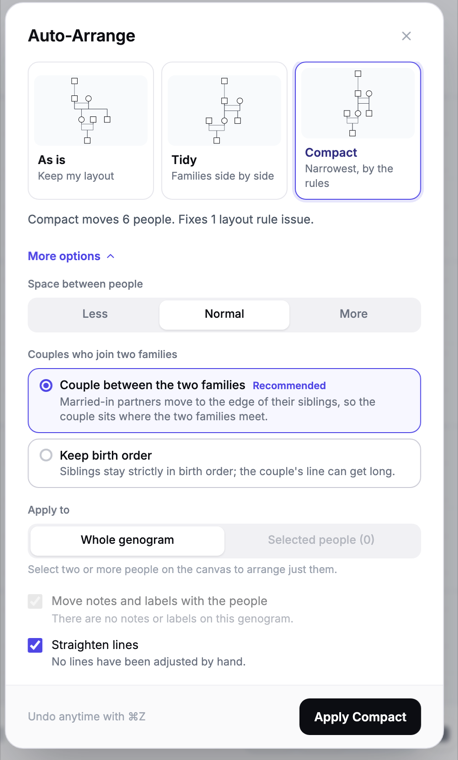
Open Auto-Arrange
- Click Auto Arrange in the main toolbar (the four-squares icon, at the bottom of the editor), or press Ctrl+Shift+A (Cmd+Shift+A on Mac).
- The window shows three cards, each a small picture of your genogram laid out that way.
- Pick a card, read the summary line (for example, "Compact moves 6 people."), then click Apply Compact (or Apply Tidy).
The three layouts
- As is (Keep my layout) — nobody moves. Useful when you only want to straighten lines (see below).
- Tidy (Families side by side) — each family is placed next to the other, which keeps the father's and mother's sides clearly apart.
- Compact (Narrowest, by the rules) — the narrowest layout that follows standard genogram rules: one row per generation, children under their parents, parents centered over their children. This is the default.
If the summary says a layout "would keep everyone where they are", your genogram is already arranged that way and the button reads Nothing to change.
More options
Click More options under the cards to fine-tune the result. Your choices are remembered for next time.
- Space between people — Less, Normal or More horizontal spacing.
- Couples who join two families (shown when your genogram has two or more families) — Couple between the two families (recommended: married-in partners move to the edge of their siblings so the couple sits where the families meet) or Keep birth order (siblings stay strictly in birth order; the couple's line can get long).
- Keep this family's order (Tidy only) — choose which side, for example the father's family or the mother's family, keeps its order.
- Apply to — Whole genogram or Selected people. To arrange just part of the chart, select two or more people on the canvas first (box select with B), then open Auto-Arrange; everyone else stays put.
- Move notes and labels with the people — notes, text, secrets and shaded areas stay beside whoever they were next to.
- Straighten lines — clears bends and hand-adjusted connection points and line heights, so lines go back to their default route. With As is selected, this straightens lines without moving anyone.
Undo anytime
One Cmd+Z / Ctrl+Z (or the undo arrow in the top-left bar) puts everything back exactly as it was, including notes and lines.
Asking the AI to arrange
You can also ask the AI Assistant to "arrange the layout" or "tidy up". When the AI adds two or more people to a small genogram it tidies the layout automatically; add "don't move anything" to your request if you want to keep your positions. Large genograms are not re-arranged for small additions.
Small tweaks by hand
- Move a person: with the Select tool (V), drag their symbol. Turn on Snap to Grid (grid button in the toolbar) to line people up.
- Move several people: box select (B) and drag the group, or use Distribute in the Bulk Edit panel to space three or more people evenly. See Selecting and Moving People.
- Raise or lower a line: select it and drag its grip. See Adjusting Lines.
- Move the key: drag the key panel anywhere. See The Genogram Key.
Lost your genogram on screen?
Click Fit genogram to screen (next to the zoom buttons, bottom right) to bring the whole family back into view. More in Navigating the Canvas.