The Genogram Key (Legend)
Show, hide, move and customize the key that explains your symbols, and include it in exports and prints.
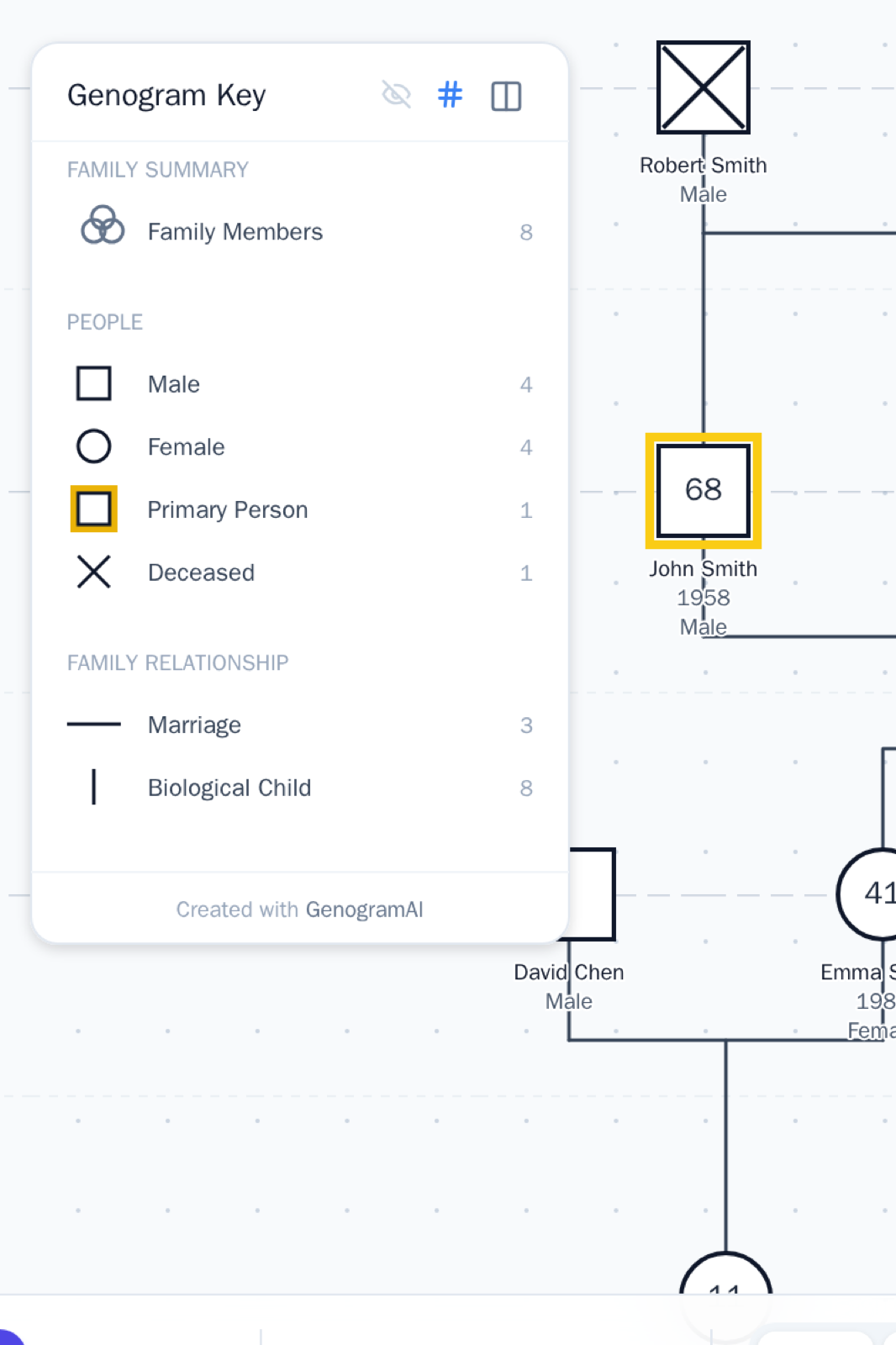
The key (legend) is the panel on the canvas that explains the symbols and lines in your genogram. It builds itself: a section only appears when something in your genogram uses it, so it always matches the chart.
Show or hide the key
- Click the Show Key / Hide Key button in the main toolbar (the map icon). If your key disappeared, this is almost always the reason.
- The crossed-out eye in the key's own header also hides it.
- You can also switch Canvas key on or off in Canvas settings (File menu).
- When the toolbar is condensed on a narrow window, the key button is under More tools at the right end of the toolbar.
- On a phone, tap ⋯ on the floating toolbar and use Show Key in the More tab.
Move the key
Click and drag the key anywhere on the canvas, for example right beside the family. Its position is saved with the genogram.
Layout and counts
- Two Columns / Single Column — the column button in the header makes a long key wider and shorter.
- Show Counts / Hide Counts — the # button shows how many people or lines use each entry.
- Click an entry to highlight the matching people on the canvas.
What appears in the key
Depending on what you use: Family Summary, People (genders, index person, deceased, pregnancies and losses), Relationships, Emotional lines, and a section for each view you have switched on, such as Religion, Medical, Heritage, Socioeconomic, Education, Location and Color, plus Secrets. Medical entries appear when Medical is on in the Views menu.
Customizing entries
- Color entries: in a standard genogram you can color-code people (Inspector, Custom row, with the Custom view on). Click a color's label in the key to rename it, and click the section title to rename the section (for example "Family roles"). A color shows a label once you type one, either in the key or in the person's Label for this color field.
- Heritage entries can also be renamed by clicking their label in the key.
- Fully custom entries (your own line designs and symbols) are a Freeform document feature and appear under Custom Key. In a standard genogram the other sections are fixed and can't be added or renamed.
Households are not listed in the key; they show only as outlines on the canvas. Sexual orientation is written as a text label rather than a key symbol (see Showing & Hiding Labels).
Put the key in your export or print
In Image…, PDF… or Print… (File menu > Export), turn on Integrated key. It replaces the floating key with a compact legend at the bottom of the page, so the file explains itself. See Printing & Saving as PDF.
The key doesn't have its own size control. To make the whole chart easier to read, use Text size in the Text Labels menu, or zoom in before exporting.