The radial quick-add menu — how we designed the fastest way to build a genogram
If you want to know how to build a genogram fast, the bottleneck is never creating people — it’s placing them. This is the story of the design decision that made GenogramAI’s builder feel quick: a ring of actions that springs out of the person you selected, with geometry that mirrors the diagram itself.
The problem: pointer miles
A realistic clinical genogram has around thirty people across three generations. In a conventional genogram builder tool, every one of those people is born the same way: you travel to a toolbar, open an “Add person” menu, pick a type, drop the new shape onto the canvas, then drag it to where it belongs and wire up the connecting lines by hand.
Multiply that round trip by thirty and you have literally hundreds of pointer miles — a marathon of tiny, repetitive journeys between the edge of the screen and the middle of the family.
And creation is the easy half. The hard half is placement. A genogram is not a bag of shapes; it is a coordinate system. Parents belong exactly one generation up. Children belong one generation down. Partners sit beside their spouse on the same horizontal band. Siblings share a sibling line. Get the placement wrong and you haven’t saved any time — you’ve created cleanup work.
The real question was never “how do we let people add family members to a genogram?” It was “how do we let them add family members in the right place without thinking about coordinates at all?”
The design: a ring that mirrors the diagram
Select any person and a ring springs out around their symbol. The buttons are split into two arcs, and which side a button lands on tells you what it does.
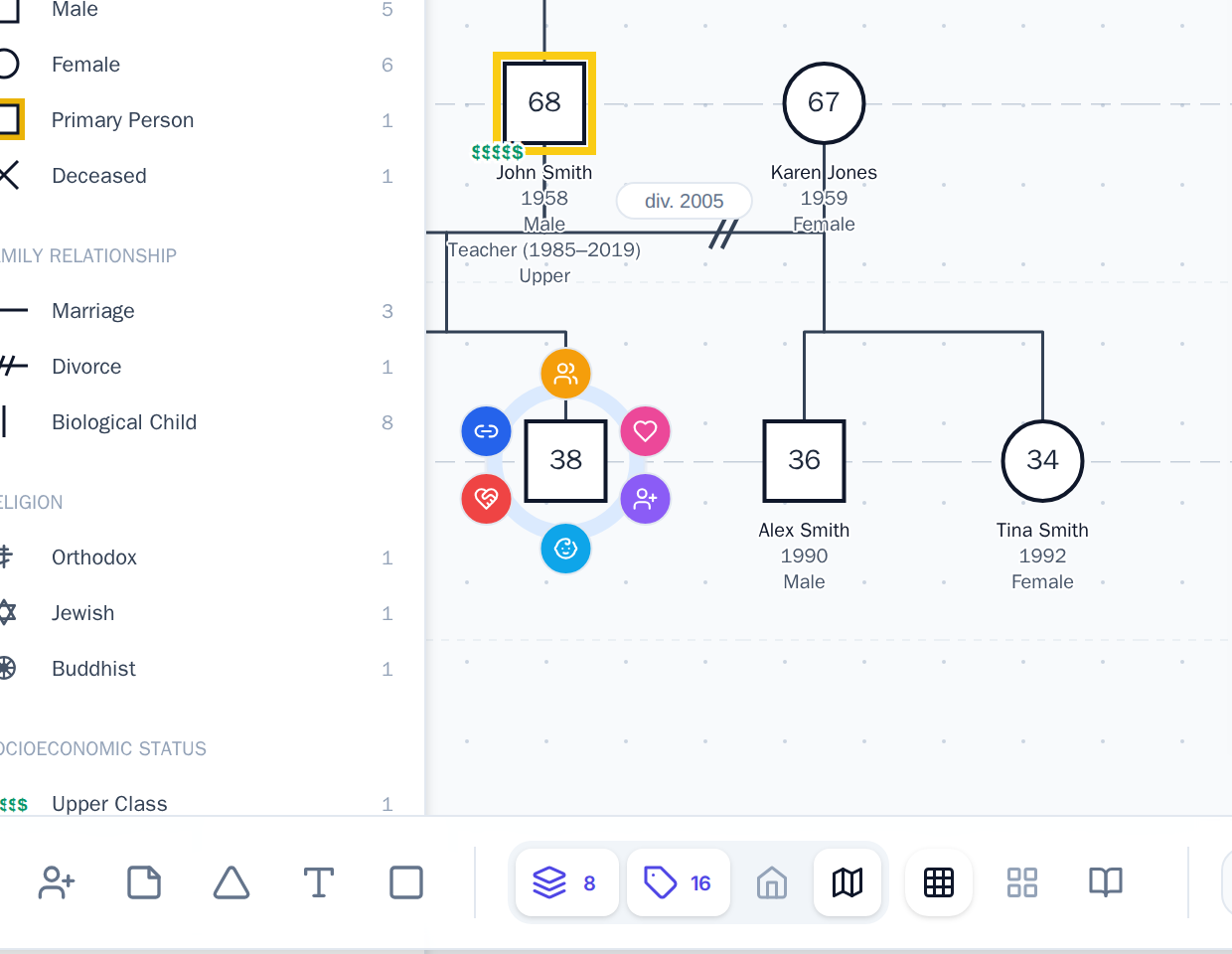
The right arc adds people: Add Parents, Add Partner, Add Sibling, and Add Child. The left arc draws lines: Emotional Line and Draw Connection. That two-sided split is the first layer of meaning — your right hand grows the family, your left hand describes the relationships between the people who are already there.
The second layer is the insight the whole feature rests on. Within the “add people” arc, the buttons are positioned to match where the new relative will actually land. Add Parents sits on top. Add Child sits on the bottom. Partner sits beside. The menu geometry mirrors genogram geometry, so direction equals generation. You don’t read a label to know that parents go up — the button is already up.
Your hand learns the diagram’s coordinate system through muscle memory, and after a few relatives you stop looking at the icons entirely. Up for parents, down for kids, sideways for a partner. The family grows in the direction you push.
The animation, and why it isn’t decoration
Every button springs from the center of the selected symbol with spring physics and a 50-millisecond stagger, so the ring reads as growing out of the person rather than popping into existence over them. That is a deliberate choice, not eye candy. The motion says “these actions belong to this person” before you’ve processed a single word. Motion communicates hierarchy.
The rest of the choreography keeps the canvas calm. The corner badges that normally sit on a node — counts, tags, status markers — hide while the ring is open, so nothing competes with the actions for your attention. And the whole ring auto-dismisses the moment your pointer leaves it. There is no close button to hunt for and no stray menu left hanging over the family while you go look at someone else. You point, you act, you move on, and the interface tidies up behind you.
What quick-add does under the hood
Press a button and the new relative arrives already placed with correct genogram semantics — no dragging, no manual wiring. In plain language:
- Add Parents creates a couple one generation up, drops the marriage bar between them, and connects the selected person down to it as their child.
- Add Partner places a spouse beside the person on the same generational band and draws the partnership bar linking them.
- Add Sibling puts the new person on the same sibling line, sharing the same parents, in birth-order position.
- Add Child drops a child below and links it to the correct partnership — and because we recently shipped separated child lines per marriage, children land under the specific marriage they belong to.
Generational placement, sibling lines, and partnership bars are all handled for you. The layout engine even keeps the connecting plumbing legible as the family fills in: GenogramAI is the first genogram maker we know of with fully automatic line tunneling, so when a new vertical line has to cross an unrelated horizontal one, it makes a small clean hop instead of an ambiguous four-way smudge — a convention borrowed from hand-drawn circuit diagrams. You build; the diagram stays readable.
A note on lineage
We didn’t invent the radial menu. Pie menus are a classic result in human–computer interaction — Don Hopkins and colleagues studied them in the 1980s and showed that selecting by direction is faster and more reliable than selecting from a vertical list, because direction is a gesture your hand can learn while a list position is something your eyes must re-read every time.
Our contribution is not the pie menu. It is mapping the pie-menu pattern onto genogram semantics, so that the same directional muscle memory that makes pie menus fast also encodes the meaning of the diagram: up is the previous generation, down is the next one. We brought the pie-menu pattern to genogram building and let the family tree’s own geometry decide where each button goes.
Tips to build even faster
- Work outward from one anchor. Select the index person, add parents (up), add a partner (right), add children (down), then select each new relative and repeat. The family radiates out of a single starting point without you ever visiting the toolbar.
- Let the direction do the thinking. Don’t read the icons after the first minute. Push up for elders, down for descendants, sideways for partners.
- Pets get a single Connect to Owner action. A pet isn’t part of the generational grid, so its ring collapses to one button that links it to its human instead of offering parents or children.
- Use the left arc to add feeling, not structure. Once the skeleton exists, select two people and draw an Emotional Line or a plain connection to record closeness, conflict, or cutoff — the clinical layer that separates a genogram from a family tree.
Starting from existing data is just as fast: you can import a GEDCOM file and then use quick-add to fill in the relationship detail genealogy files never carry. If you’re comparing builders, the same speed logic is why people switch to us from GenoPro and Family Tree Maker. For the full notation the quick-add engine places for you, see the guide to genogram symbols and the symbols reference. Recent placement improvements are logged in the changelog, and if you get stuck the help center is one click away.
Build a genogram in minutes, not hours
Select a person, push a direction, and the next relative lands in exactly the right place. GenogramAI is free to start — two genograms, up to 50 people each, no card required.