AI & Digital Workflows
From paper to digital: modernizing your genogram practice
Quick answer
For decades, genograms were created by hand: carefully drawn symbols and lines on paper or whiteboard. While this traditional approach has served practitioners well, digital tools like GenogramAI offer compelling advantages that are worth the transition effort.
Why go digital?
| Paper | Digital | |
|---|---|---|
| Updates | Redraw the whole chart | Easy updates without redrawing |
| Appearance | Varies with the hand that drew it | Consistent, professional appearance |
| Views | One drawing | Multiple view modes (cultural, medical, emotional) |
| Storage | Scanned into the file, or lost | Stored in your account; Clinical plan adds zero-knowledge AES-256-GCM encryption |
| Documentation | Scan or photocopy | Easy export: PNG on Free; PDF, SVG and GEDCOM on paid plans |
| Speed | Fast for a simple family | AI assistance for rapid creation |
Common concerns (and solutions)
“I’m faster with paper”
Initially, yes. But consider the full workflow: drawing, redrawing after changes, scanning for records, recreating when paper is lost. Digital tools have a learning curve, but once mastered, they’re significantly faster, especially with AI assistance.
“Clients engage better with hand-drawing”
This is a valid concern. The solution: use GenogramAI collaboratively. Show the canvas on a shared screen and let clients direct the creation. The quick-add buttons make it feel interactive, and clients often appreciate seeing the professional result instantly.
“Technology fails in sessions”
Always have a backup plan: a blank paper and pen. Modern web apps are reliable, but the GenogramAI web app does need a connection; if you work offline regularly, the Clinical plan’s macOS desktop app includes secure offline storage. The risk of technology failure is often outweighed by the benefits of digital documentation.
Transition strategies
- 1
Gradual integration
Don’t abandon paper overnight. Start by using GenogramAI for documentation, creating digital versions of hand-drawn genograms. This builds familiarity while maintaining your current workflow. - 2
Digitize existing genograms
Recreate your existing hand-drawn genograms digitally, by hand or by describing each family to the AI. On the Professional and Clinical plans, Import with AI converts a photo of a hand-drawn genogram directly. This creates a digital archive and helps you learn the tool through familiar content. See the paper-to-digital guide. - 3
Practice between sessions
Create practice genograms for fictional families or case studies. This builds speed without the pressure of client sessions. - 4
Start with new clients
Use digital genograms with new clients while maintaining paper for existing ones. This allows comparison and gradual transition.
Workflow optimization tips
Efficiency tips
- Learn the keyboard shortcuts: V to select, A to add a person, B for box select, Space to pan
- Use AI text-to-genogram for initial structure, then refine manually
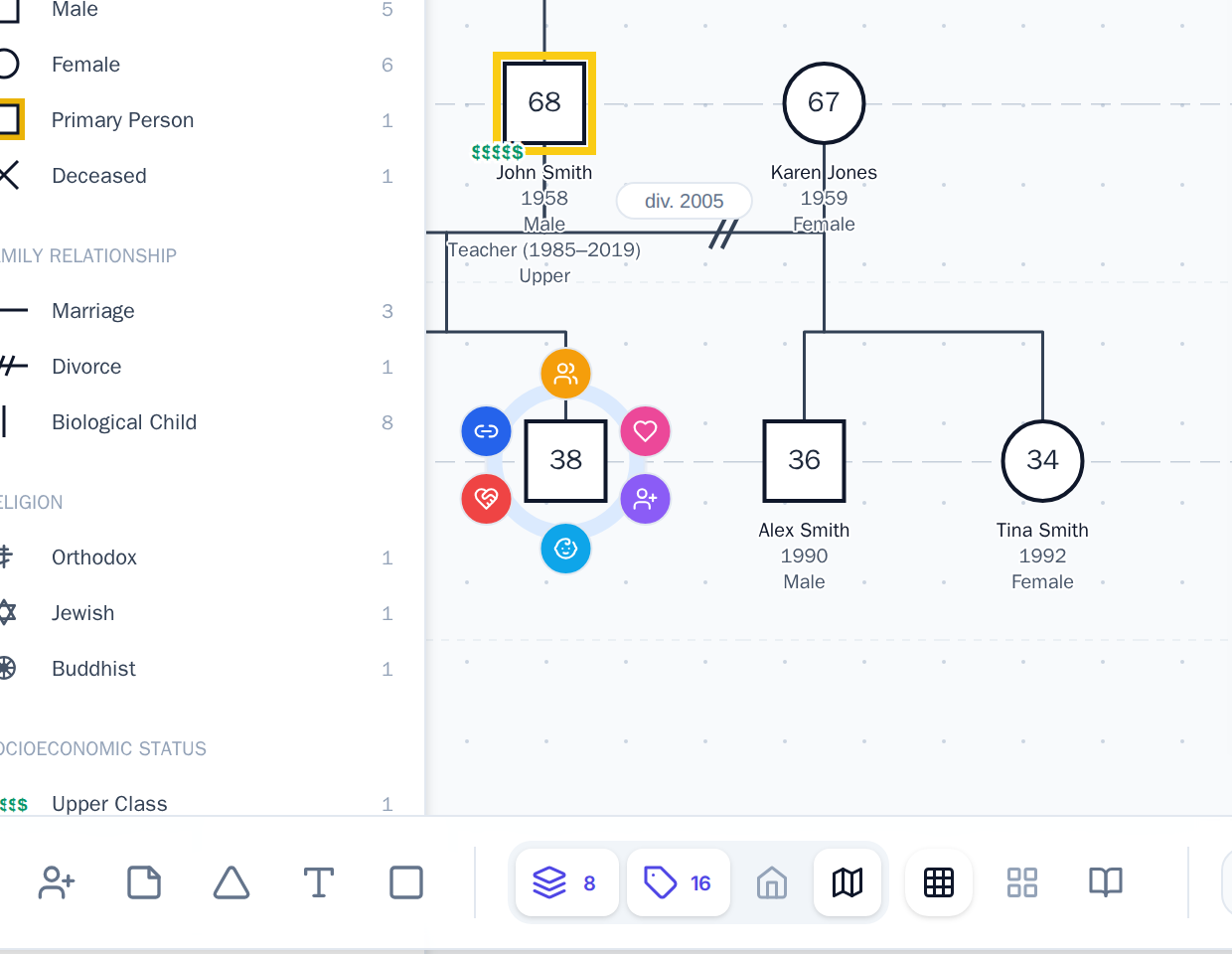
- Quick-add buttons are faster than the toolbar for adding relatives
- GenogramAI auto-saves as you work; save a copy before major restructuring
- Use the Inspector panel for detailed attributes after the structure is complete
When paper still works
Be honest: digital isn’t always better. Paper may be preferable when:
- Working with clients who are uncomfortable with technology
- In settings without reliable internet
- For quick brainstorming before formal documentation
- When the therapeutic process of drawing together is important
Conclusion
The transition from paper to digital genograms represents a significant shift in practice, but one that offers substantial benefits. With proper planning and gradual integration, practitioners can maintain the clinical effectiveness of genogram work while gaining the efficiency and capabilities of digital tools. The key is approaching the transition thoughtfully, not as an all-or-nothing change, but as an evolution in practice.
Frequently asked questions
How do I convert a hand-drawn genogram to digital?
Either redraw it in a digital editor, or describe the family in text and let the AI build it. On the Professional and Clinical plans you can also photograph the paper genogram and use Import with AI to turn the image into an editable genogram. Always check the result against the original.
Does GenogramAI work offline?
The web app needs an internet connection. The native macOS desktop app on the Clinical plan includes secure offline storage. Keep a pen and paper as a backup for sessions where the connection is unreliable.
Is a digital genogram secure enough for client work?
It depends on the plan. The Clinical plan adds Clinical Mode, which strips identifying data before any AI call, and AES-256-GCM zero-knowledge encryption, so the data is encrypted before it leaves your device. Check your own organization’s requirements before storing client information in any tool.