The AI Assistant: Edit and Chat
Open the AI Assistant with Ask AI, use the Edit tab to change your genogram and the Chat tab to ask questions, and keep track of your AI credits.
The AI Assistant is a sidebar inside the editor. You type what you want in plain language and it either changes your genogram for you or answers your question. It replies in the language you write in.
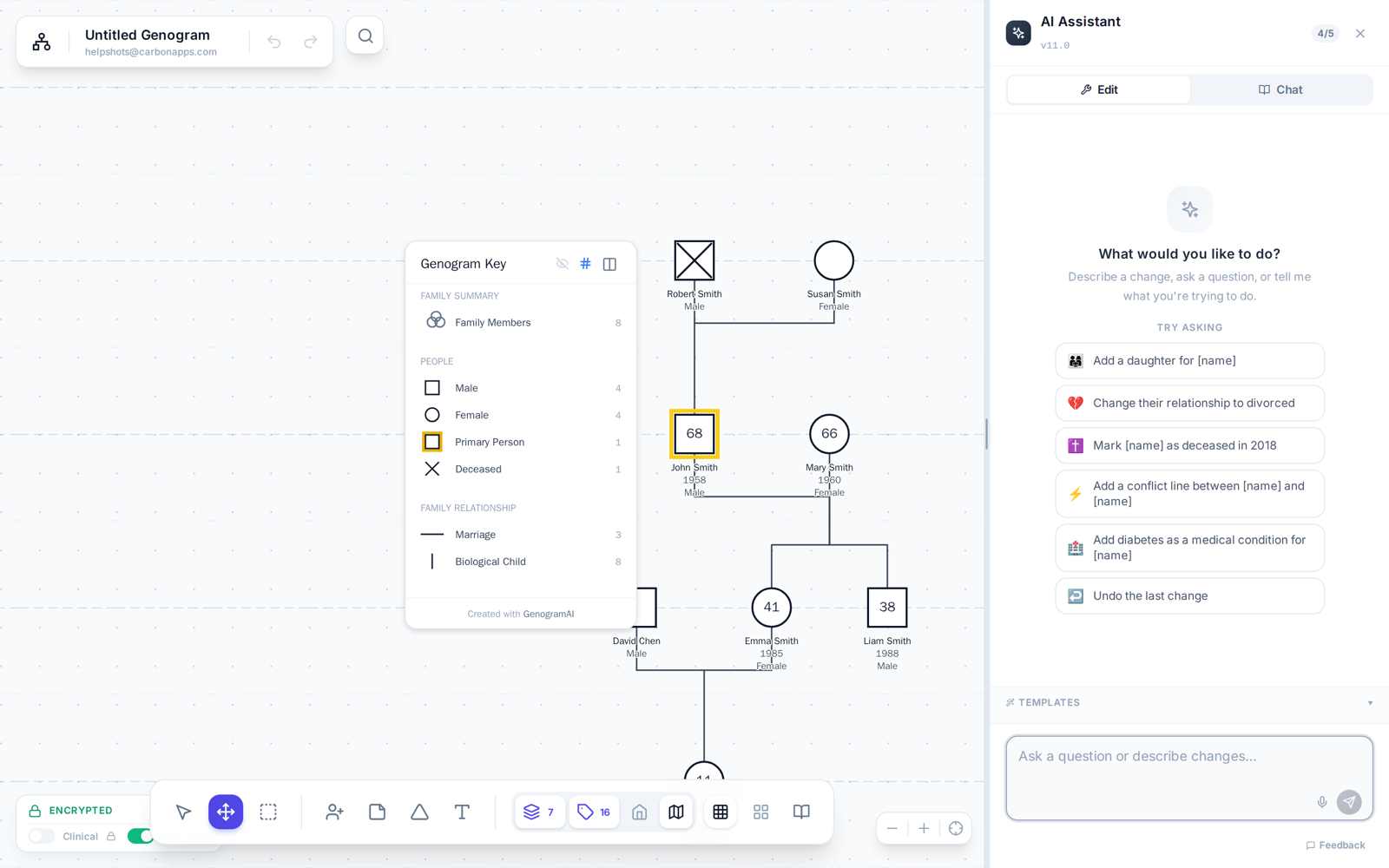
Opening the AI Assistant
- On a computer: click Ask AI at the top right of the editor, next to Share, or press Cmd/Ctrl + K. Press it again to close the sidebar.
- On a phone: tap the round sparkle button on the right edge of the screen.
You can drag the left edge of the sidebar to make it wider or narrower.
The two tabs
- Edit (called Build while the canvas is empty) — edits your genogram for you. Describe a change such as "Add a daughter for Maria", "Change their relationship to divorced" or "Mark Tom as deceased in 2018". On an empty canvas, describe a whole family and it builds the genogram.
- Chat — answers questions about genograms: symbols, McGoldrick notation, family systems theory, or patterns in the genogram you have open. Try the suggestions, such as Analyze patterns in my genogram or What triangles or alliances do you see?
You can also ask "how do I…" questions about the app in either tab. When a short tutorial video covers the answer, the assistant adds a Watch link that plays it right in the sidebar.
Other things in the sidebar
- Templates — ready-made starting families (Couple, Nuclear Family, 3-Generation Family, Single Parent and more). Each template uses one credit.
- Voice input — the microphone button in the message box, in browsers that support speech input.
- Undo — reverses the last AI change. Individual replies also have their own undo button.
- Report bad response (thumbs down) — tell us when the AI got it wrong; you can add what you expected.
- Feature requests — if you ask for something the app can't do yet, the assistant can offer to file it on our Ideas board for you.
AI credits
On the Free plan you get 5 AI credits a month. Each message you send to the AI Assistant, in either tab, uses one credit, and so does each template. A counter such as 4/5 in the sidebar header shows what you have left. Credits reset at the start of each month. When they run out, the sidebar shows Upgrade to Pro for unlimited AI. Pro and Clinical include unlimited AI, so there is no counter. See Plans and Pricing.
Working with client data
On the Clinical plan, turn on Clinical mode and the sidebar shows Protected: names and personal details are removed before the AI sees them. See Clinical Mode.
Tips for good results
- Use the names that are on the canvas, and say exactly what should change.
- Select a person first if you mean "her" or "him" — the assistant uses your selection as context.
- Plain sentences work better than pasted formatted text, headings or bullet lists.
- After a very long conversation, click Start a new session for more accurate answers.