Your Dashboard & Folders
Find your way around the dashboard sidebar, organise files into folders, and switch between the new and classic dashboards.
The Dashboard is where all your files live. It opens after you sign in, and Back to Files in the editor's File menu brings you back to it.
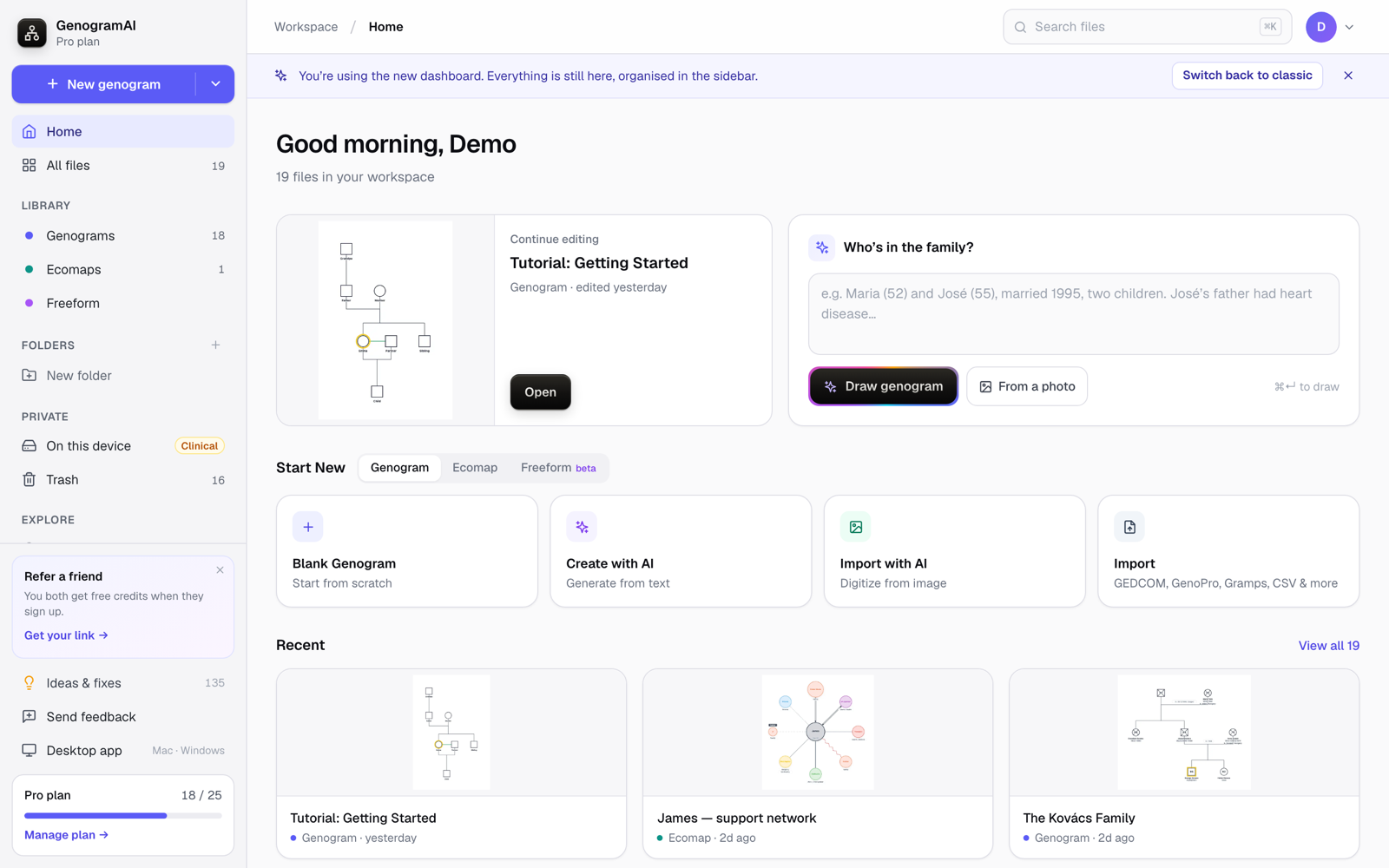
The sidebar
- New genogram: opens a blank genogram. The arrow beside it lists every way to start: genograms (blank, Create with AI, Import with AI, GEDCOM File, JSON File), ecomaps and Freeform files.
- Home: recent files with Continue editing, a box to describe a family for the AI to draw, and community examples
- All files: everything in your cloud workspace
- Library: Genograms, Ecomaps and Freeform
- Folders: your own folders
- Private: On this device (Clinical-mode files kept only in this browser) and Trash
- Explore: Community (genograms others have shared) and Tutorials (videos)
Your plan and usage show at the bottom of the sidebar. Settings, Refer & earn, the desktop app, feedback and Log Out are in the account menu (your avatar, top right).
Working with files
Click a card to open it. The … button on each card has Open, Share or publish, Duplicate, Version history, Move to folder… and Move to Trash. Use Search files at the top to find a file by name, and switch between grid and list view.
Folders
- Click + next to Folders in the sidebar (or New folder) and type a name
- Drag a file card onto the folder, or use Move to folder… in the card's menu
- To take a file out, choose Remove from folder
Hover a folder and click its … button to Rename it or Delete folder. Deleting a folder never deletes the files inside; they stay in your workspace.
New vs. classic dashboard
The sidebar dashboard is the default. Accounts created before October 2026 can still click Switch back to classic in the banner (or turn on Classic dashboard in the account menu), and Try the new dashboard switches back. Your files are the same in both. The classic dashboard is being retired in November 2026.
Community
The Community page lists genograms shared by clinicians, students and researchers, sorted by Popular, Most copied or Newest. Click Use template to copy one into your workspace. To share one of yours, see Publishing and sharing.