Exporting Your Genogram as an Image (PNG or SVG)
Download your genogram as a PNG picture (free) or a high-res PNG or SVG (Pro) to put in a document, slide, or email.
To download your genogram as a picture, open the File menu (the GenogramAI logo at the top left of the editor) and choose Export > Image…. A PNG at standard resolution is free on every plan.
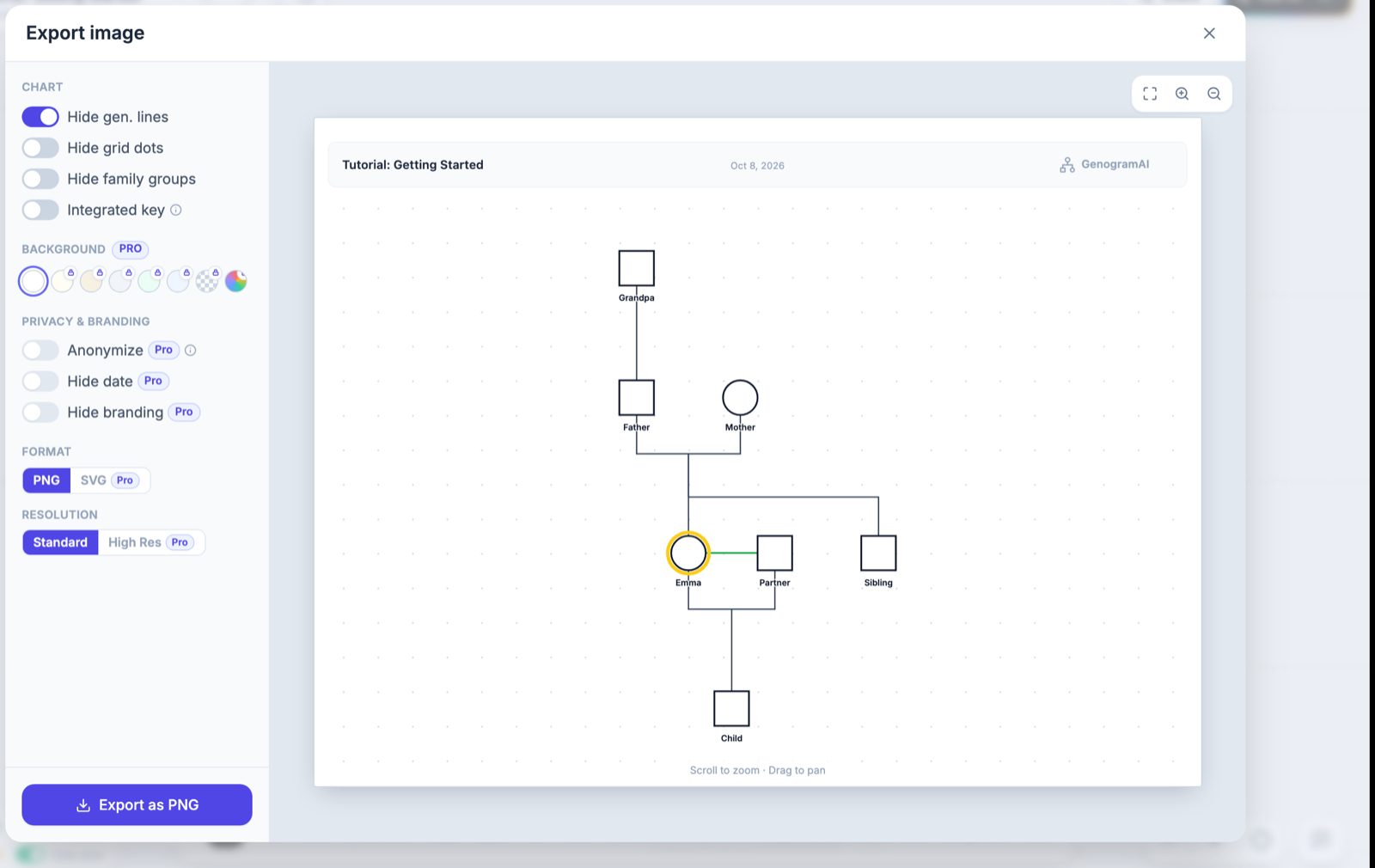
Export a PNG, step by step
- Click the GenogramAI logo at the top left to open the File menu.
- Point to Export and choose Image…. A preview of the sheet opens with options on the left.
- Check the preview. Scroll to zoom and drag to pan; click Fit All if part of the family is cut off. What you see in the preview is what gets exported.
- Pick your options (below), then click Export as PNG.
- The file downloads to your browser's usual download location (normally your Downloads folder), named after your genogram.
Options in the Export image window
- Chart (free): Hide gen. lines, Hide grid dots, Hide family groups, and Integrated key, which adds a compact key at the bottom of the image so it explains itself.
- Background: white is free. Other colors (Ivory, Parchment, Cool gray, Mint, Sky, or a custom color) and Transparent are Pro.
- Privacy & branding (Pro): Anonymize (first name and last initial only), Hide date, and Hide branding.
- Format: PNG (free) or SVG (Pro), a vector file that stays sharp at any size.
- Resolution (PNG): Standard (2x, good for screens, free) or High Res (6x, print quality, Pro).
Options marked with a Pro badge stay visible on the Free plan; clicking one opens the upgrade window.
Putting the image in Word, Google Docs, or slides
There's no direct insert, but it takes a few seconds: export a PNG, then use Insert > Picture (Word, PowerPoint) or Insert > Image > Upload from computer (Google Docs, Slides) and pick the downloaded file. Turn on Integrated key first so the symbols are explained inside the picture.
Need a PDF instead?
Use Print… in the same Export submenu and choose Save as PDF in your browser's print dialog. It works on every plan. See Printing & Saving as PDF.
On a phone or tablet
The File menu is in the same place, the logo at the top left: tap Export and a second sheet lists Image… and the other formats (the arrow at the top goes back). To send a link instead, tap ⋯ on the floating toolbar and open the More tab for Publish & Share.