Canvas Settings: Background, Dot Grid & Generation Lines
Change the canvas background color and turn the dot grid, generation lines, generation labels, snap to grid and the key on or off.
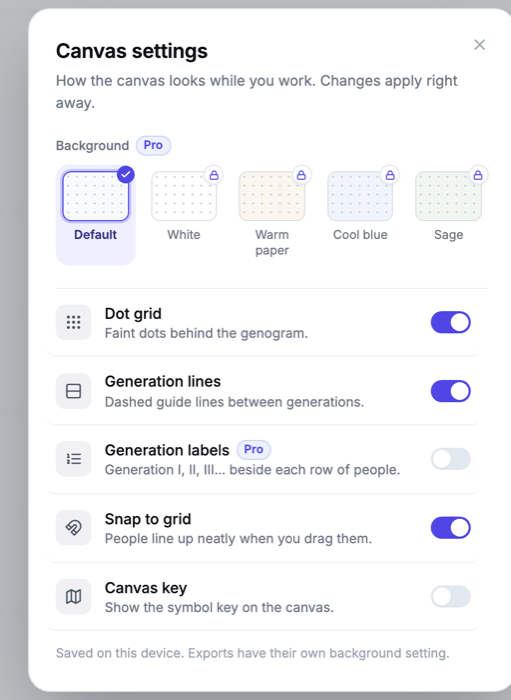
Canvas settings controls how the canvas looks while you work: the background color and the guides behind your genogram. Open it from the File menu (GenogramAI logo, top left) > Canvas settings. Changes apply right away; there is no Save button.
Background
Choose Default, White, Warm paper, Cool blue or Sage. On the Free plan, Default is included and the other colors are Pro (they show a lock and open the upgrade window).
Switches
- Dot grid: the faint dots behind the genogram. Turn it off for a clean, blank canvas.
- Generation lines: dashed guide lines between generations.
- Generation labels (Pro): Generation I, II, III... beside each row of people.
- Snap to grid: people line up neatly when you drag them.
- Canvas key: shows the symbol key on the canvas. The Show Key button in the toolbar does the same. See The Genogram Key.
Exports have their own settings
Canvas settings are saved on this device and only change your working view. For exports and printouts, use the Hide grid dots, Hide gen. lines and Background options in the Export window. See Exporting as an image.