Product guide
Import an existing genogram
Quick answer
Which formats can you import?
| Source | Files | What comes across | Where in the app |
|---|---|---|---|
| GEDCOM | .ged, .gedcom, .gdz, .zip | People, dates, places, couples, divorces, adopted/foster/step children, sources | Import card (paid plans) |
| GenoPro | .gno (GenoPro 2 or later) | People, families, union types, emotional relationships where present | Import card (paid plans) |
| Gramps | .gramps, .gpkg | People, families, events, child relationship types, sources | Import card (paid plans) |
| RootsMagic | .rmtree | People, families, child relationship types, events | Import card (paid plans) |
| GEDCOM X / Family.Show | .json, .xml, .gedx, .familyx | People, couples, parent-child links | Import card (paid plans) |
| Spreadsheet | .csv, .tsv, .xlsx | One row per person: names, sex, dates, parents and spouses | Import card (paid plans) |
| Text description | Typed or pasted notes | Whatever the description states, including conditions and emotional relationships | Import with AI (uses AI credits; Free includes 5 a month) |
| Photo or scan | JPG, PNG | Shapes, lines and labels the AI can read | Import with AI (paid plans) |
GenogramAI's role vs the dedicated file guides
What can you import?
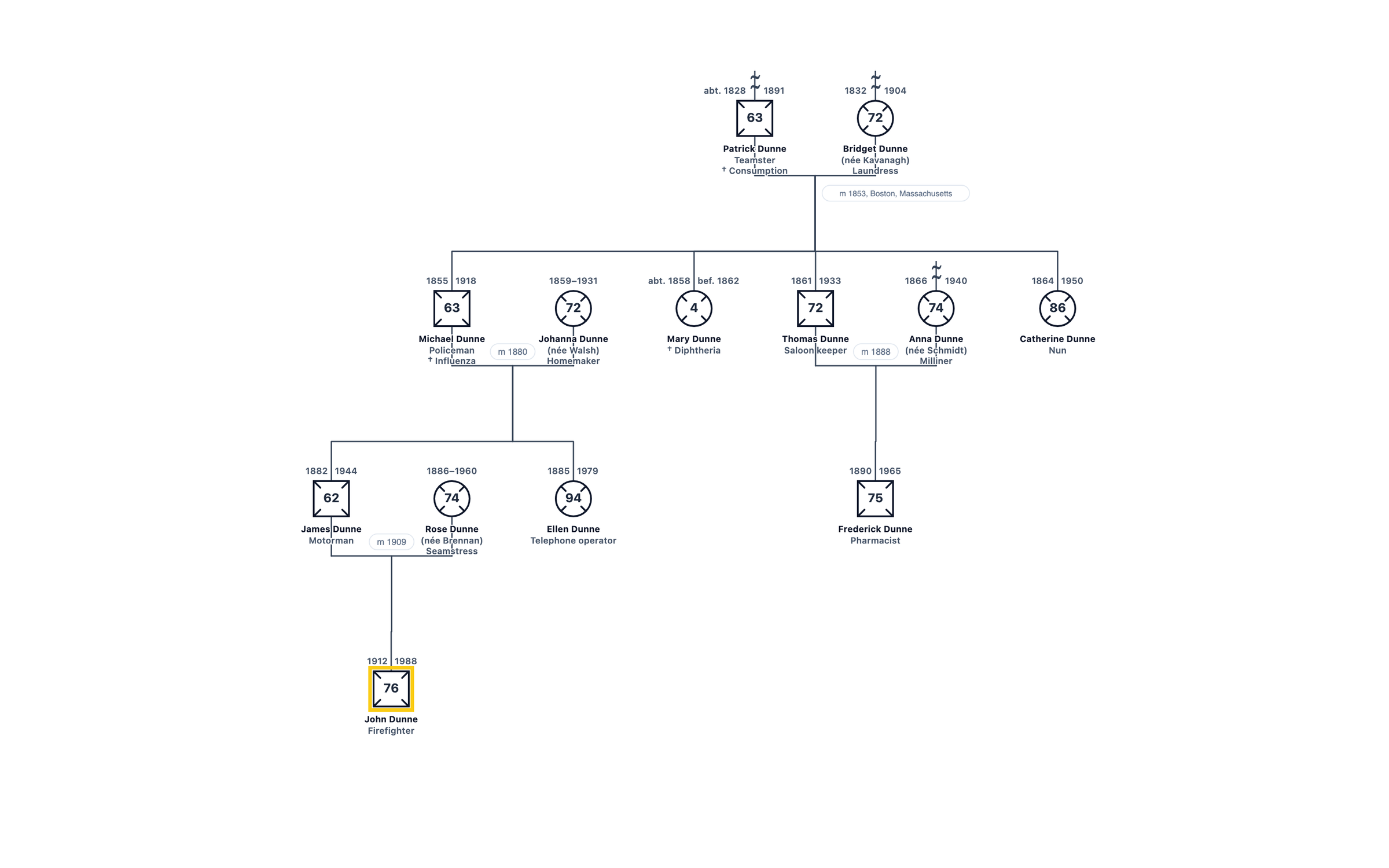
Family tree files
Genograms from other software
Session notes
Written family histories
Hand-drawn sketches
Screenshots
How does genogram import work?
- 1
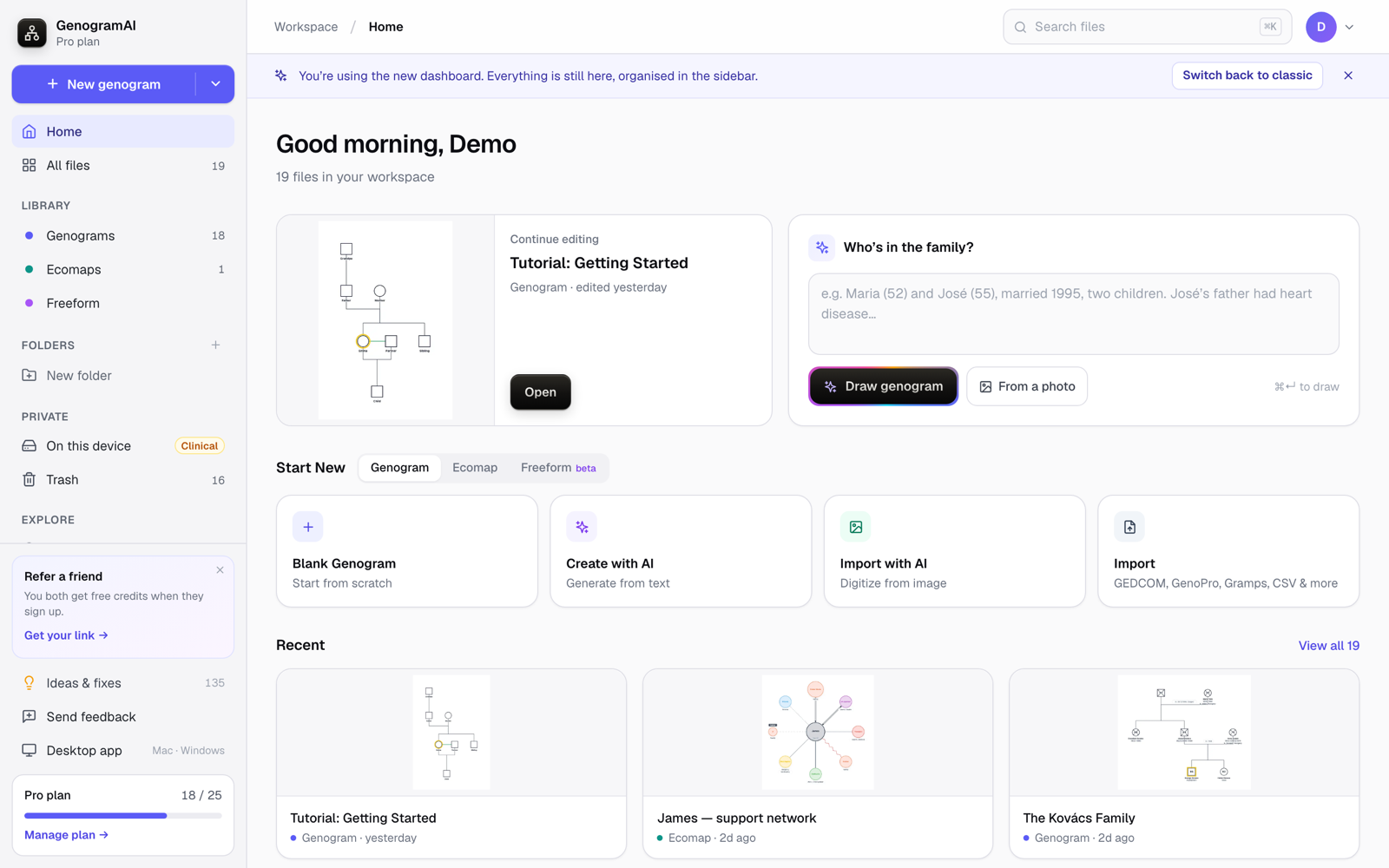
Open the dashboard
Sign in and go to Start New. Choose the Import card for a family tree file, or Import with AI for text or a photo. - 2
Provide your data
Select your GEDCOM, GenoPro, Gramps, CSV or other file, paste a family description, or upload a photo of the chart. File and photo import are on paid plans; text works on every plan. - 3
Let GenogramAI build the chart
Files are mapped directly to people and relationships; text and photos are read by the AI and turned into a structured genogram. - 4
Review and refine
Check every person and relationship against your source and correct anything with the editor or one AI request at a time. - 5
Save and export
Save to your account and export as PNG on the Free plan, or PDF, SVG and GEDCOM on paid plans.
Refine with AI after importing
After importing, use plain language to make changes one at a time, for example “Add a sister to John” or “Mark Mary as deceased in 2020”. Standard GEDCOM files carry no emotional relationships, so this is also the quickest way to add closeness, conflict and cutoffs after a genealogy import.
Example request
Import questions
What formats can I import into GenogramAI?
On paid plans, the Import card on the dashboard opens family tree files: GEDCOM (5.5, 5.5.1 and 7.0, including zipped files), GenoPro .gno, Gramps, RootsMagic, GEDCOM X, Family.Show and CSV, TSV or Excel spreadsheets. Import with AI builds a genogram from a photo of an existing chart (paid plans), and Create with AI builds one from a text description on any plan.
Can I convert a hand-drawn genogram to digital?
Yes, on paid plans. Take a clear photo or scan of the hand-drawn genogram and use Import with AI. The AI reads the shapes, lines and labels and builds an editable genogram that you then check and correct. Image import is not part of the Free plan.
How accurate is the AI genogram import?
Clear, well-lit images and well-structured text import best. Treat the result as a first draft: check every person, date and relationship against your source, then fix anything that is off with the editor or by asking the AI for one change at a time.
Can I import genograms from other software?
Yes, on paid plans. GenoPro .gno files open directly, including emotional relationships where the file has them. Most genealogy programs (Ancestry, FamilySearch, MyHeritage, Family Tree Maker, Legacy) can export GEDCOM, which GenogramAI opens. Spreadsheets with one row per person work too.
Do I need to install anything to import?
No. Import runs in the browser. Family tree files are read in your browser, and the resulting genogram is saved to your account, or kept encrypted on your device in Clinical mode.
What happens after I import?
The imported family opens in the editor. You can rearrange people, add emotional relationship lines and medical conditions, or type a request such as "Add John's brother Michael, born 1975" and let the AI make the change.